Use the customer and property you already have.
Create the HOVER request from the ForgeOne CRM job so the address, customer, and project stay together from the beginning.
 LIMITED PILOT
The ForgeOne CRM + HOVER workflow shown here is currently under controlled review before broader customer availability. The screens and capabilities below describe the integration path being tested, not a general-availability claim.
Limited pilot · partner reviewStart from the ForgeOne CRM job, use the partner service, and keep the result where the office and field team can find it.
See the parts of the workflow that stay connected to the job.
Create the HOVER request from the ForgeOne CRM job so the address, customer, and project stay together from the beginning.
Search HOVER for work that already exists and connect the completed structure to the ForgeOne CRM property that needs it.
Supported reports, status, and measurement information stay with the ForgeOne CRM job so the office and field team know where to find them.
Real ForgeOne CRM mobile screens showing how the partner workflow stays with the job.
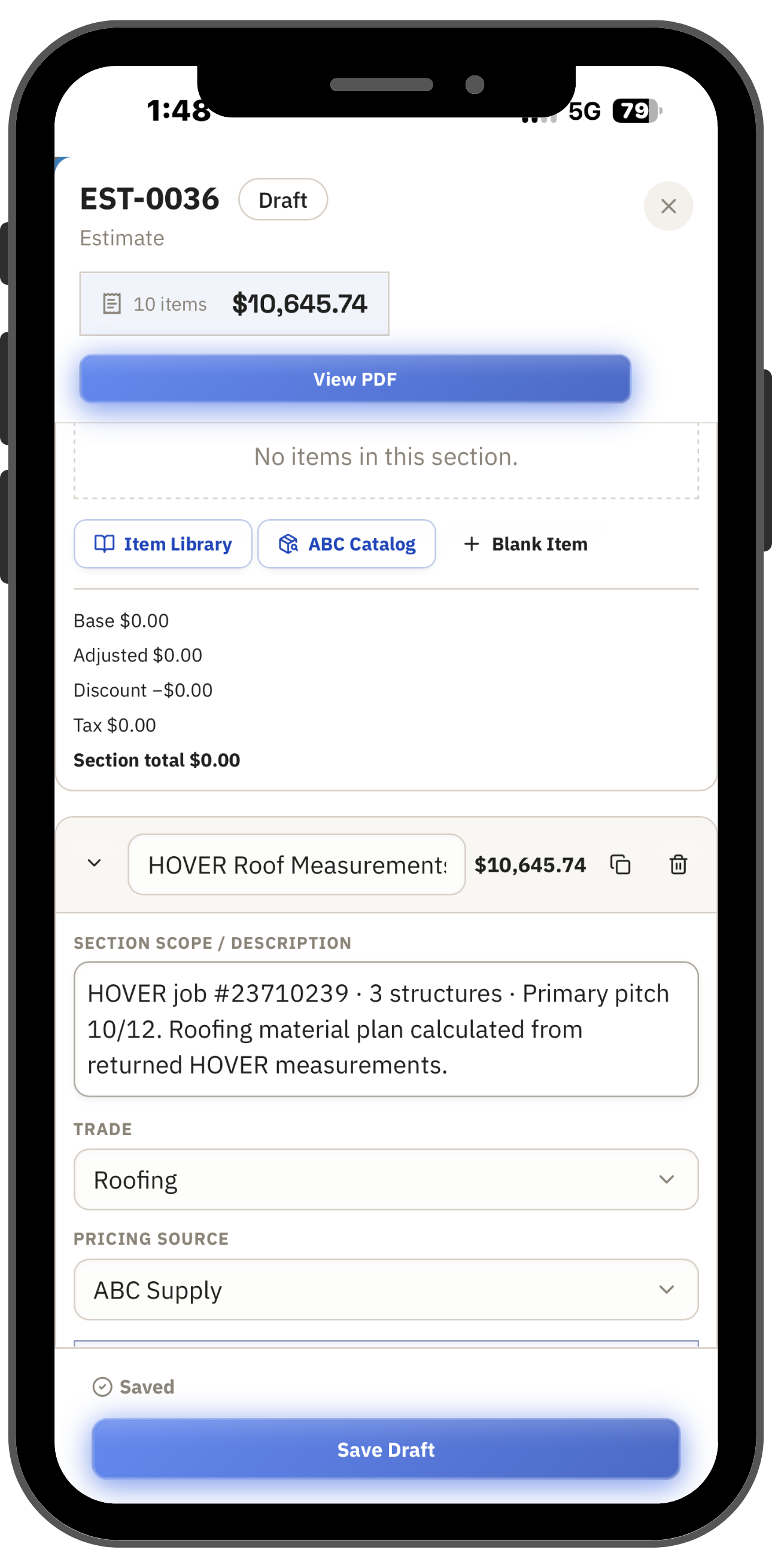
HOVER measurement information can stay attached to the estimate and job where the contractor is already working.
Start with the job, do the partner work, and keep the result with the same customer and project instead of rebuilding it somewhere else.
A company admin connects the company HOVER account and chooses the normal capture settings.
The customer, property, estimate, HOVER work, documents, and the next step stay connected to the ForgeOne CRM job. When somebody needs to know what happened, the answer is on the job instead of buried in another login.
ForgeOne CRM was built from years of hands-on contractor and insurance workflow experience across disconnected tools. The goal is simple: if it does not save contractors time or make the job easier to run, it does not belong in ForgeOne CRM.
Straight answers about setup, day-to-day use, and what your team can expect.
LIMITED PILOTBring HOVER into the ForgeOne CRM job and keep the work, status, and next step in one place. Same partner your team already uses — tied to the job the way it should be.